 by Gareth Hardy

If you’re building a custom WordPress theme, there are often situations where you need editable content that applies across the entire website rather than being tied to a specific page or post.
This is where Advanced Custom Fields (ACF) Options Pages become incredibly useful.
An ACF Options Page allows you to create global settings for things like:
- Contact details
- Social media links
- Header content
- Footer settings
- Site-wide calls to action
- Tracking scripts
However, when developing a custom theme, you may notice that the Options Page functionality is not enabled by default.
Enable the ACF Options Page
To enable the Options Page, add the following code to your theme’s functions.php file:
if( function_exists('acf_add_options_page') ) {

    acf_add_options_page();

}
What This Does
This checks whether the ACF Pro function exists before attempting to create the Options Page.
Once added, you’ll see a new Options item appear in the WordPress admin sidebar.
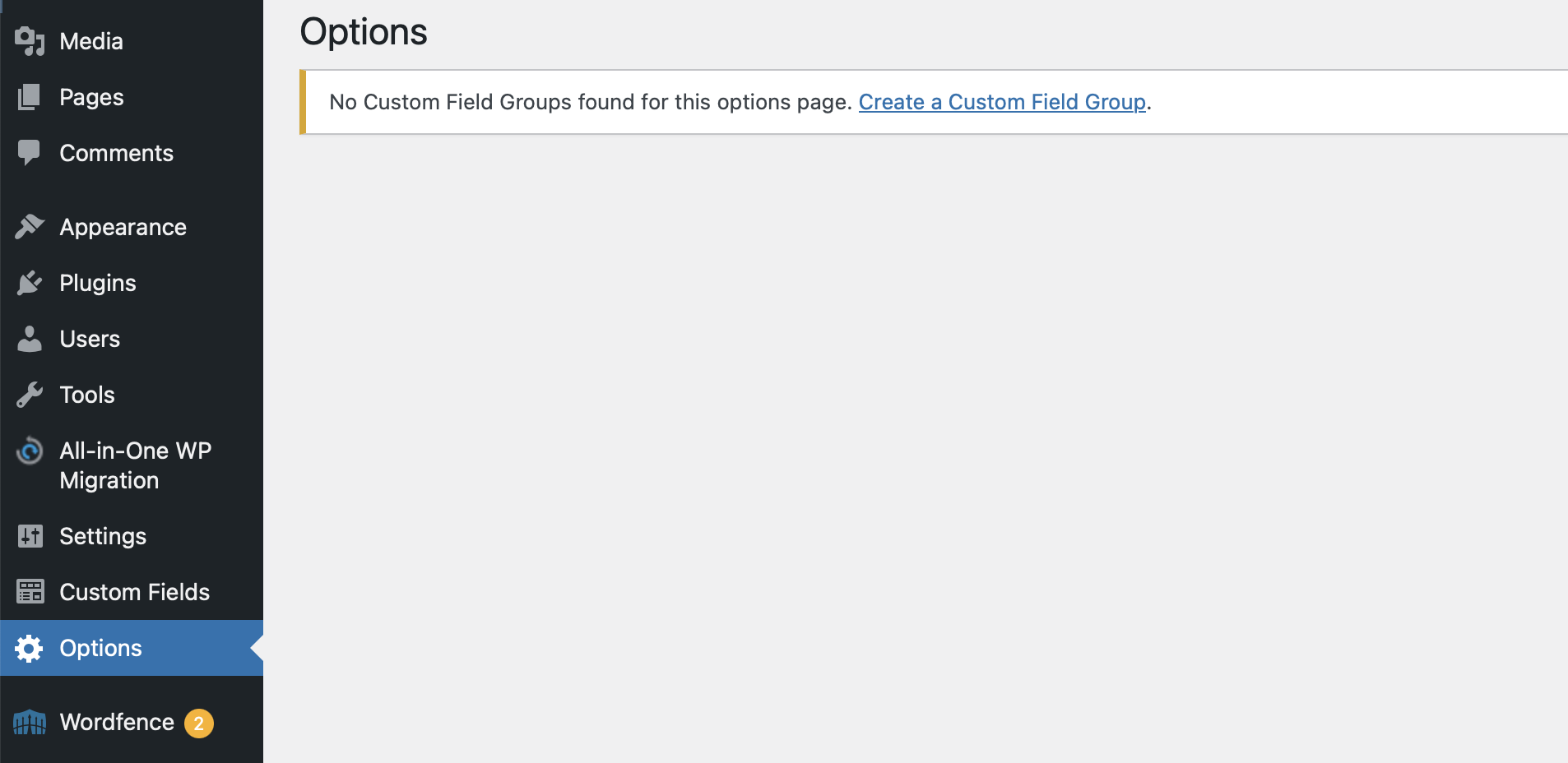
From there, you can begin creating global custom fields and assign field groups to the Options Page within ACF.
Example Uses for an ACF Options Page
A few common uses include:
- Global header announcements
- Footer contact information
- Social media URLs
- Default SEO fields
- Reusable call-to-action content
- Company information
I regularly use Advanced Custom Fields when building custom WordPress websites and bespoke themes for clients. You can view more of my web design and development work here.
Final Thoughts
The ACF Options Page is one of the simplest ways to make a custom WordPress theme more flexible and client-friendly.
If you’re building bespoke themes regularly, it’s well worth including this by default in your development workflow.